Tools for 3D printing files
Convert, view, fix and make 3D print files, and work out what a print will cost. Drop a model below to start.
More options
3D Printer Wiki is a set of small, focused tools for the everyday jobs around 3D printing files. Turn a Bambu Studio 3MF into an STL, an STL into a STEP file for CAD, or a game model into something a slicer can open. Look inside a file you were sent, fix an STL that won't slice, scale a model that arrived in inches, or make a lithophane, a name keychain or a QR code plate from scratch. Each tool has its own page, opens with a working demo, and comes with a guide that explains what is going on and what to watch out for.
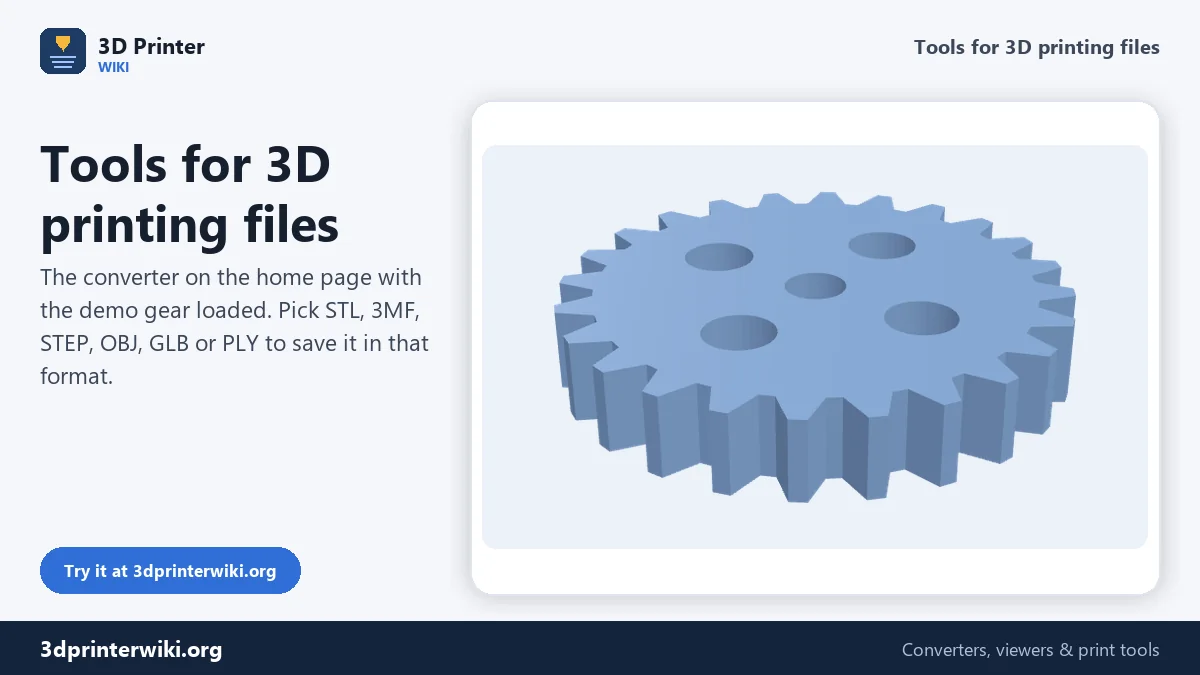
The box above is a general converter. Drop any common 3D file on it, check the preview and size, and save it as STL, 3MF, STEP, OBJ, GLB or PLY with one click. For more options, open the page of the conversion you need below.
Most-used tools
These are the tools people reach for most often, and the problems they solve:
- 3MF to STL: turn a Bambu Studio, OrcaSlicer or PrusaSlicer project into STL, with every part in its filament colour and helper volumes left out.
- STL to STEP: bring a mesh into SolidWorks, Fusion or FreeCAD as a solid, with flat areas merged into real faces.
- STEP to STL: print a part downloaded from a supplier or designed in CAD, meshed finely enough for round holes.
- STL viewer: open an STL on any computer or phone, see its size, triangle count and whether it is a closed solid.
- Lithophane maker: turn a photo into a flat, curved, cylinder or heart lithophane that glows when lit from behind.
- Text to STL and the keychain generator: lettering, signs and name tags in any font.
- STL repair: close holes, flip inside-out faces and remove loose bits so the slicer stops complaining.
- 3D print cost calculator and filament calculator: what a print costs, and how many metres are left on a spool.
Convert 3D files
View files online
Make printable models
Export pictures and 2D outlines
Fix and edit STL files
Print calculators
How the converter on this page works
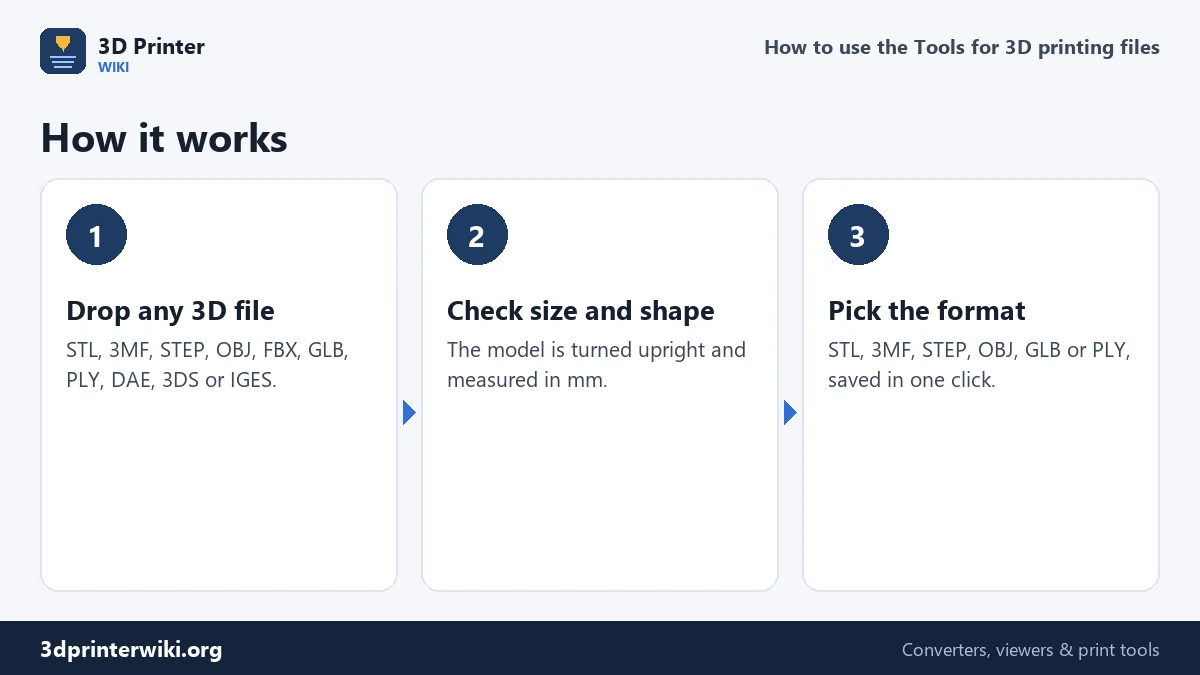
- Drop a file on the box, or click it to choose one. STL, 3MF, STEP, STP, OBJ, FBX, GLB, glTF, PLY, DAE, 3DS, AMF and IGES files are read.
- Check the preview. The model is centred on a build plate and the line under it gives its size in millimetres, the number of triangles and parts, and the volume.
- Fix units or orientation under More options if the model is far too small or lying on its back. Game and web formats are turned from Y-up to Z-up automatically.
- Pick the output format. Each button saves the model in that format straight away.
Which format should you use?
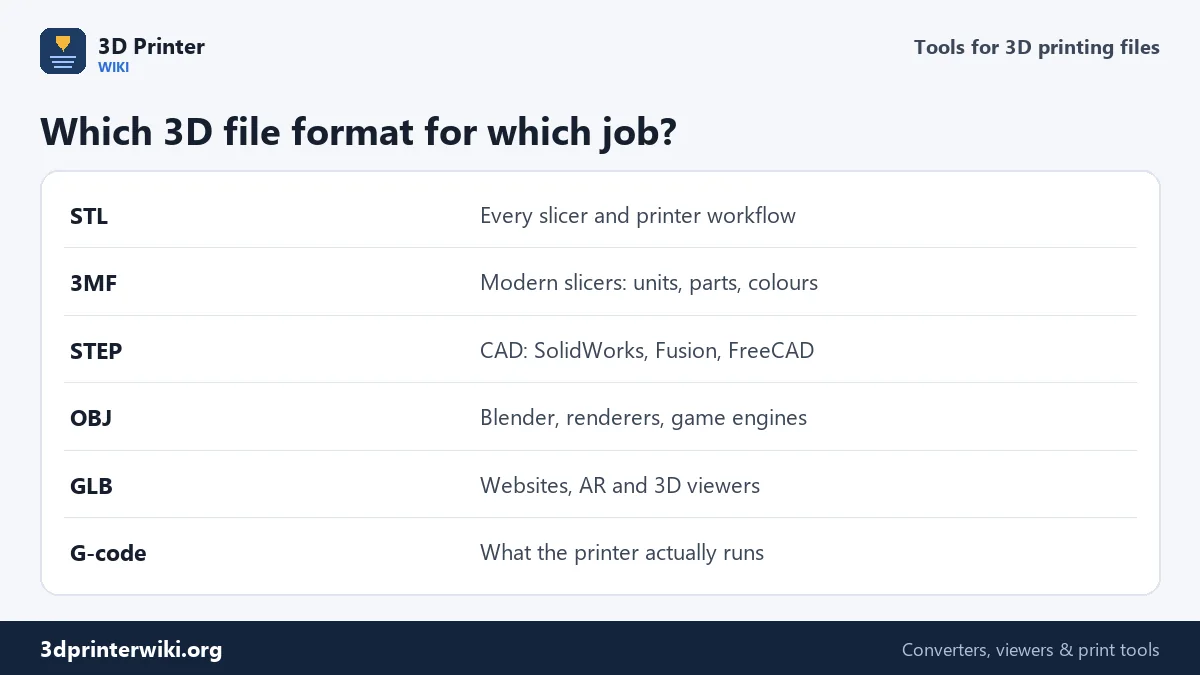
Most confusion around 3D files comes from formats that were made for different jobs. STL is the oldest and simplest: just triangles, no units, no colour, but every slicer reads it. 3MF is what modern slicers prefer, because it stores the unit, several named parts, colours and even print settings in one zipped file. STEP is the language of CAD; it describes exact surfaces, so it's the format to send to an engineer or open in Fusion. OBJ and FBX come from 3D art and games, GLB from the web and AR, and PLY from scanners. G-code isn't a model at all: it's the list of moves your slicer wrote for one particular printer.
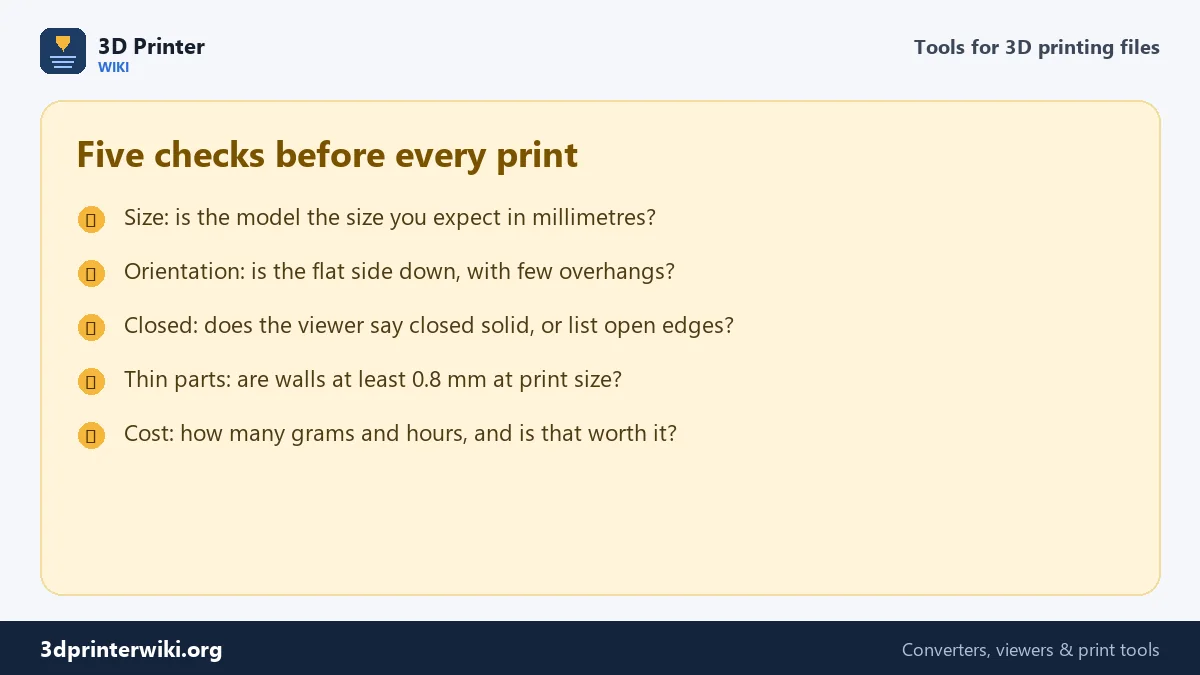
Converting between them is mostly about two things that differ from format to format: the unit (millimetres, centimetres, metres or inches) and which axis points up. Every converter on this site shows the size in millimetres before you download, so a model that is 25.4 times too small, or lying on its back, is caught before it reaches your slicer.
Common problems and the tool that fixes them
- The model is tiny or huge in the slicer. It was saved in inches, centimetres or metres. Use the STL scaler, or set Source units when converting.
- The model lies on its back. It came from a Y-up program such as Blender, Maya or a game engine. The converters turn it upright; the STL editor rotates and lays it flat.
- The slicer warns about holes or non-manifold edges. Run the file through STL repair.
- The file is too big to upload or open. Reduce the STL file size, or save it as 3MF, which is usually several times smaller.
- Several parts are stuck in one file. The STL splitter saves each one separately.
- You need a drawing or a laser-cut outline. STL to SVG and STL to DXF cut a 2D profile out of the model.
- You lost the model but still have the G-code. G-code to STL rebuilds a mesh from the toolpath.
About these tools
The tools run as small programs inside your web browser. CAD files are read with Open CASCADE, the geometry kernel FreeCAD is built on; meshes and images are handled with three.js and code written for this site. The numbers in the guides, such as how small a STEP file gets when flat faces are merged, how many metres are on a spool, or what a 50 g print costs, were measured with the tools themselves on the sample files. The about page explains in more detail how each kind of tool works and where its limits are.
Frequently asked questions
What can I do on 3D Printer Wiki?
Convert between 3D formats such as STL, 3MF, STEP, OBJ, FBX and GLB, view files, repair and resize STLs, make printable models from text, images and SVG, and calculate filament use and print cost.
Do I need to install anything?
No. Every tool works in a current browser on Windows, Mac, Linux, Android and iPhone.
Which file formats can the converter open?
STL, 3MF, STEP, STP, OBJ, FBX, GLB, glTF, PLY, DAE, 3DS, AMF, IGES and BREP. It can save STL, 3MF, STEP, OBJ, GLB and PLY.
Why is my converted model the wrong size?
The source file used different units. Change Source units under More options, or rescale with the STL scaler.
Can I use the tools for files I sell prints of?
Yes. What you make with the tools is yours. Check the licence of models you downloaded from someone else before selling prints of them.
Which tool should I use to open a file someone sent me?
Drop it on the converter above, or use the STL, 3MF, STEP, OBJ, FBX or PLY viewer for a closer look with a part list.
Updated November 2026 · How these tools work